Cost Input Screen (COGS)
Last updated: June 30, 2026
What is the Cost Input Screen?
The new Cost Input Screen allows you to upload product costs (COGS = Cost of Goods Sold).
Mable uses the COGS input to calculate profitability-based metrics such as CM1 and enables profit-based conversion values for reporting and optimization.
Where can you find Cost Input?
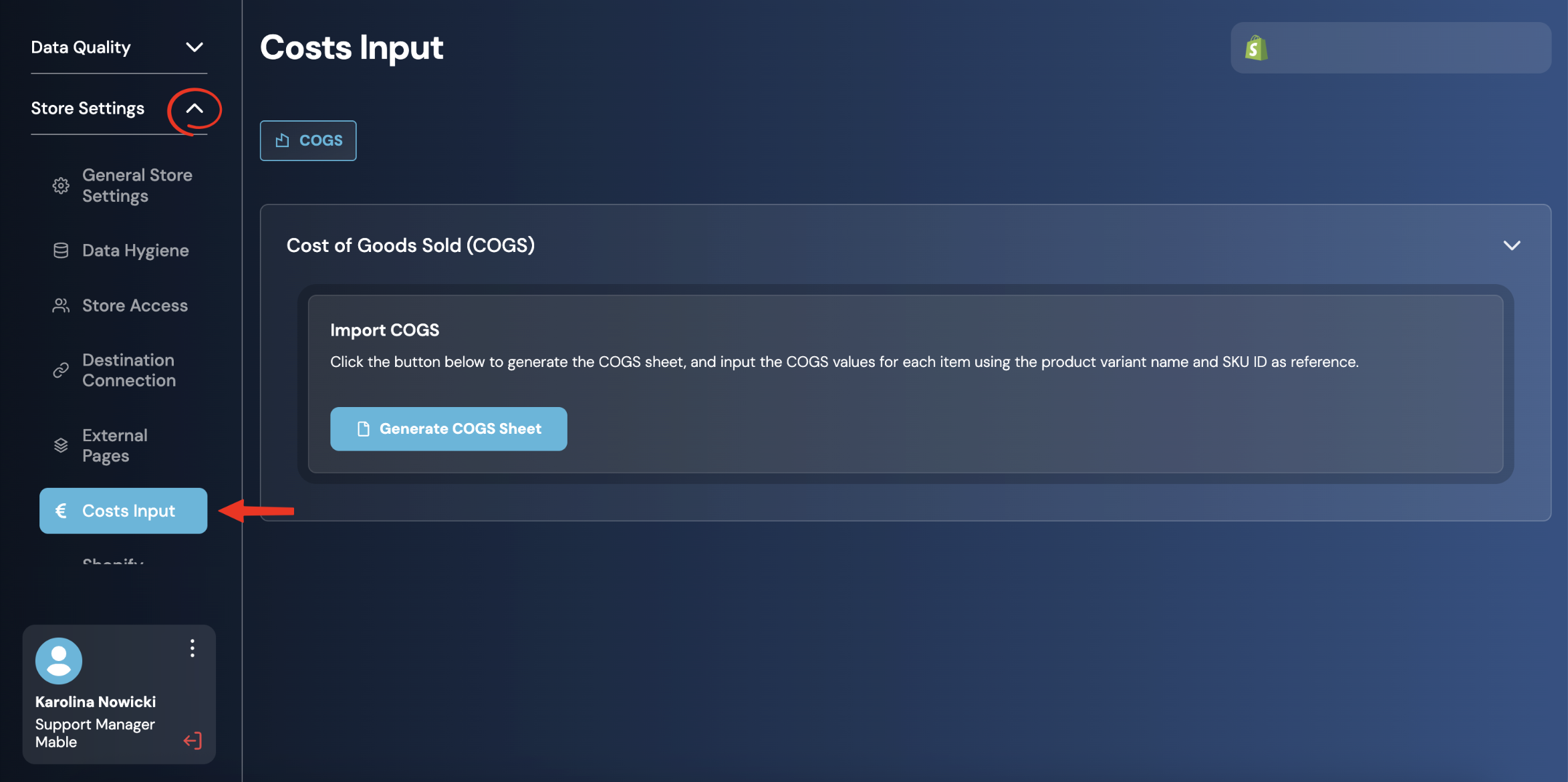
Go to: Store Settings → Cost Input
What are COGS?
COGS stands for Cost of Goods Sold.
It describes the cost a merchant has to incur to produce or buy the products that are sold. In Mable, COGS are calculated based on the unit cost of each product variant multiplied by the number of items sold.
Example:
A customer buys two units of the same product.
If the unit cost of that product is €15, the COGS for this part of the order are:
2 × €15 = €30
Mable uses these product costs to calculate how much contribution margin remains after product costs are deducted.
Why is Cost Input important?
Most ad platforms optimize based on the conversion values they receive. By default, this is typically revenue. However, revenue alone does not reflect actual profitability.
By providing COGS data, Mable can calculate CM1 (Contribution Margin 1) and use profit-based values instead of revenue-based values.
This enables:
More accurate profitability reporting
Profit-based conversion values in Event Control
More informed optimization decisions
Better visibility into campaign profitability
How does this connect to Event Control?
Once COGS have been configured, CM1 becomes available as a conversion value within Event Control.
Instead of sending only revenue values to advertising platforms, you can send profitability-based values that better reflect the economic value of a purchase. This allows optimization and reporting to move beyond revenue and helps your algorithm to understand which purchases are the most profitable.
This is especially useful when:
your products have different margins
you sell products with different production or purchase costs
you run discounts that change profitability
you want to evaluate campaigns based on contribution margin
you want to optimize toward more profitable purchases
The Cost Input must be configured before CM1 can be used properly in Event Control.
When should you use CM1 as a conversion value?
Using CM1 as conversion values is recommended whenever profitability is more important than revenue alone.
While Gross Revenue measures how much revenue a campaign generates, it does not take product costs into account. As a result, high-revenue purchases are not always the most profitable purchases.
By using CM1 as a conversion value, you can evaluate and optimize campaigns based on the contribution margin they generate rather than revenue alone.
This provides a more accurate view of campaign performance and helps align reporting and optimization with actual business profitability.
How do you set up Cost Input in Mable?
You can configure Cost Input directly in the Mable dashboard.
Step 1: Open the COGS Sheet
Click Generate COGS Sheet.
Mable opens a Google Sheet that contains the products and variants from your Shopify store.
The sheet is generated based on your Shopify product catalog. It uses the product variant name and SKU ID as references so you can identify the correct products.
Step 2: Enter the COGS values
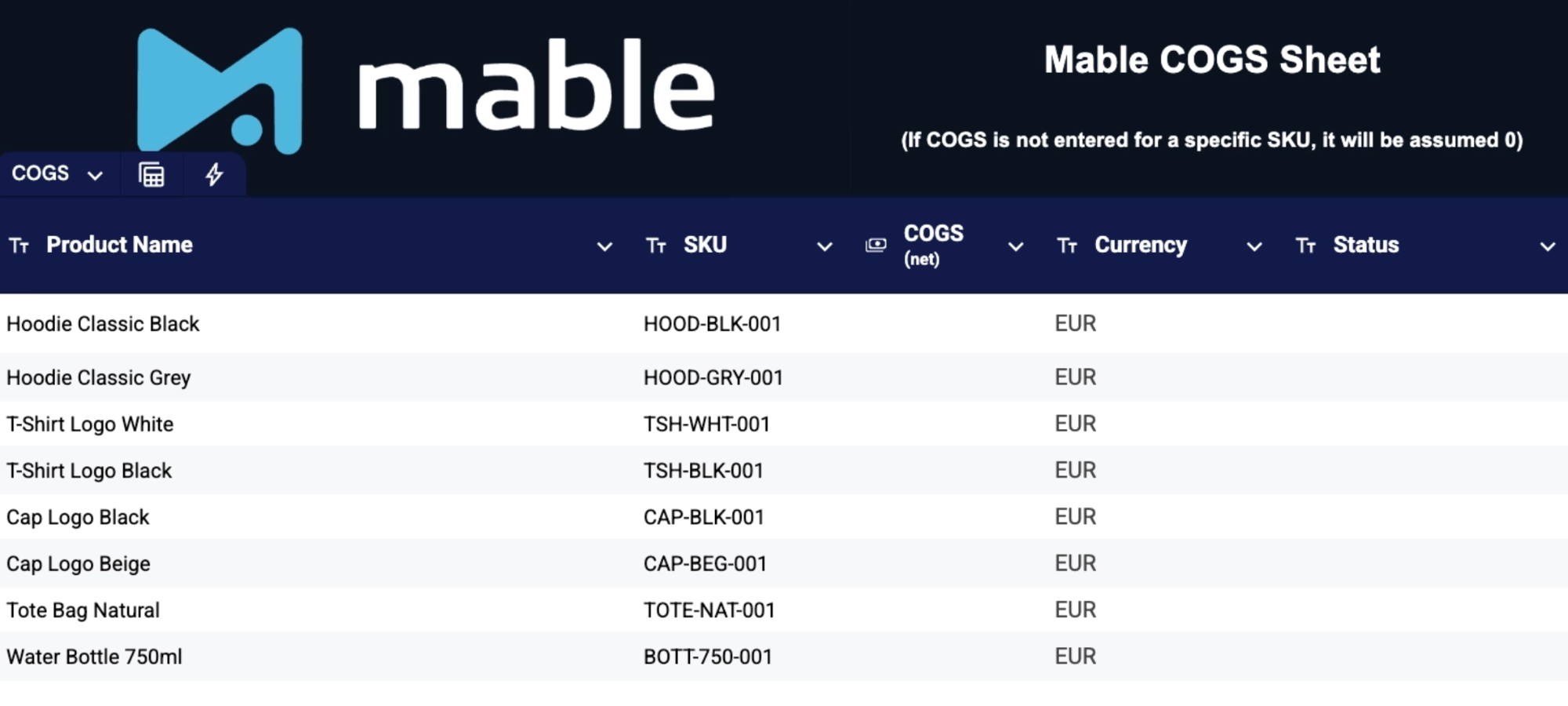
In the COGS Sheet, enter the product cost for each product variant.
The relevant column is COGS (net).
This is where you enter the net Cost of Goods Sold per unit.
You should enter the cost that your business pays to produce or buy one unit of the product.
Examples of what can be entered as COGS:
production cost per unit
purchase cost per unit
item cost per unit
manufacturing cost per unit
Do not enter the selling price. Mable already receives selling prices and order values through the store connection.
What each column means
The COGS Sheet contains the following columns:
Column | Meaning | Should it be edited? |
|---|---|---|
Product Name | The name of the product or product variant from Shopify | Filled automatically by Mable based on Shopify data. Do not edit. |
SKU | The SKU used to identify the product variant | Filled automatically by Mable based on Shopify data. Do not edit. |
COGS (net) | The net product cost per unit that should be entered | Should be entered or updated by the user. |
Currency | The currency of the COGS value | Filled automatically by Mable. Only edit if explicitly required. |
Status | Shows whether the value has been processed or whether action is needed | Filled automatically by Mable. Do not edit. |
Important: COGS are entered per product variant
COGS should be entered on variant level. That means if one product has several variants, each variant can have its own COGS value.
Important: Enter COGS values using the US number format. For example, enter 1.5 instead of 1,5. The value must be recognized by Google Sheets as a numeric value; otherwise, Mable cannot import it during the sync.
Example:
Product variant | SKU | COGS (net) |
|---|---|---|
T-Shirt / Small | 070110 | 8.05 |
T-Shirt / Medium | 070111 | 8.05 |
T-Shirt / Large | 070112 | 8.05 |
Gift Card €20 | 700102 | 10.00 |
This is important because different variants can have different production or purchase costs.
Step 3: Sync the sheet back to Mable
After entering the COGS values, return to Mable and click: Sync Sheet
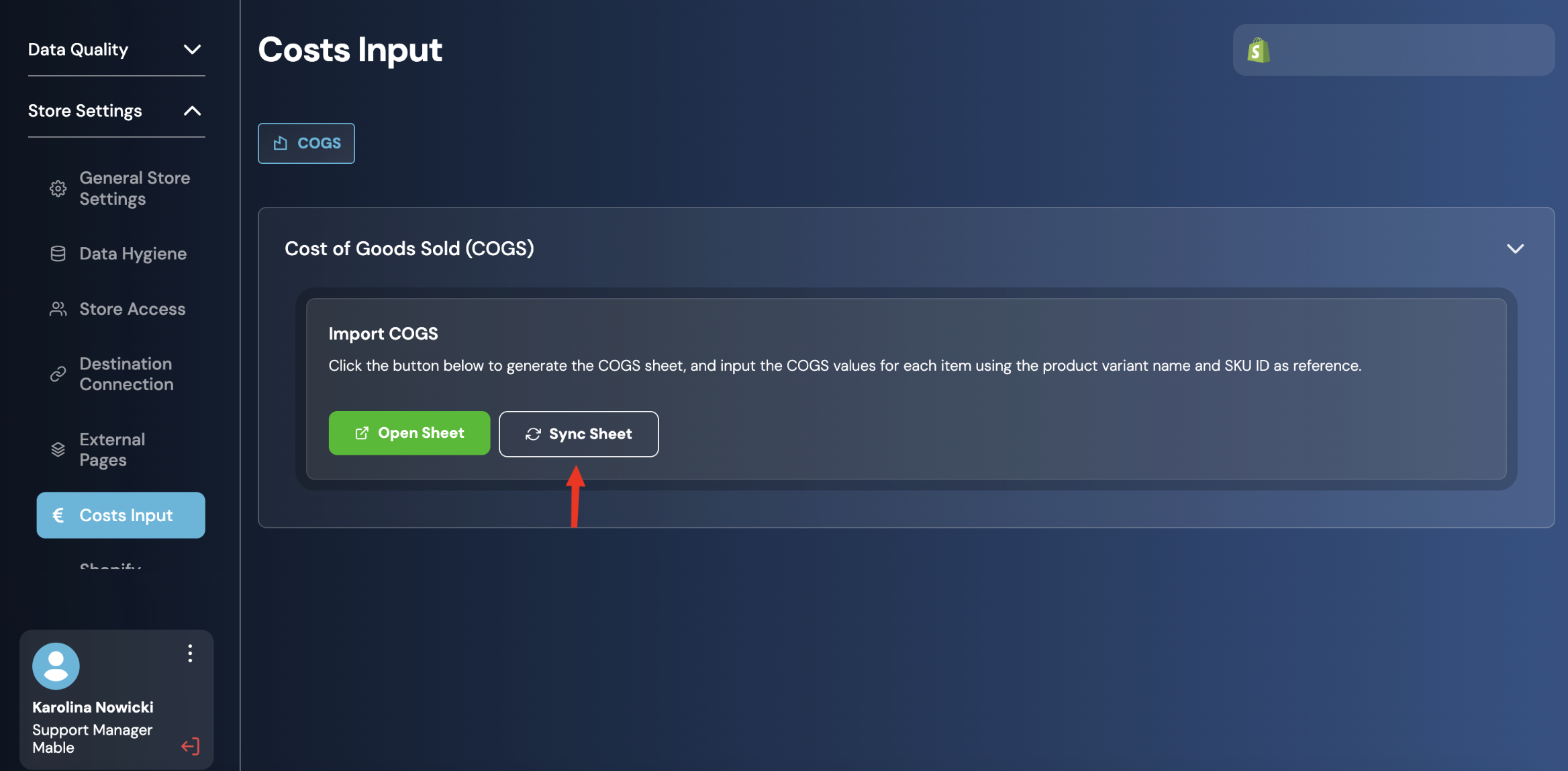
Mable then imports the values from the COGS Sheet and stores them for future calculations.
After the sync is complete, return to the Google Sheet and check the Status column (Column H). A green checkmark indicates that the COGS value for the corresponding product variant was successfully synced to Mable.
If a row does not show a green checkmark, the value was not imported successfully. In this case, verify that the COGS value is entered in the correct format (e.g. 1.5 instead of 1,5) and is recognized by Google Sheets as a numeric value before syncing again.
Only successfully synced values can be used by Mable to calculate CM1.
What happens after the costs are synced?
After the costs are synced, Mable stores them and uses them for future calculations.
This enables:
COGS calculation
CM1 calculation
CM1 conversion values in Event Control
profit-based reporting
profit-based campaign analysis in connected platforms
For example, a purchase event can then be sent with CM1 instead of Gross Revenue.
What happens when products change?
Whenever you click Open Sheet inside the Cost Input Screen, Mable automatically fetches the latest products and variants from Shopify and updates the sheet accordingly. This means that newly created products or variants will automatically appear in the sheet without requiring a manual refresh.
If new products have been added since the last sync, simply open the sheet, enter the required cost information for the new products. Then sync the values from the sheet to Mable by clicking the “Sync Sheet” button in the Cost Input Screen.
The same applies when product costs change. Update the relevant cost values in the sheet and sync the changes so Mable can use the latest product cost data for profitability calculations and reporting.
What happens if no COGS value is entered?
If no COGS value is entered for a specific SKU, Mable assumes the COGS value is 0.
This means that CM1 for this product may be too high, because no product cost is deducted.
For accurate CM1 reporting and optimization, make sure all relevant product variants have a COGS value.
Can Mable import COGS directly from Shopify?
Some brands already maintain their product costs in Shopify and ask whether Mable can automatically import these values.
At the moment, COGS values can only be provided through the COGS Sheet in the Cost Input section. Direct synchronization of product costs from Shopify is not yet available.
However, if your costs are already maintained in Shopify, you do not need to enter them manually one by one. You can:
Export your product cost data from Shopify as a CSV file.
Open the Mable COGS Sheet via Store Settings → Cost Input → Open Sheet.
Copy the cost values from your Shopify export.
Paste them into the COGS (net) column of the Mable COGS Sheet.
Click Sync Sheet in Mable to import the values.
This allows you to use existing Shopify cost data while still using Mable's profitability calculations and CM1-based reporting.
Future roadmap: We plan to support direct COGS imports from Shopify in a future release, eliminating the need for the intermediate spreadsheet step.
Best practices
Keep product costs as accurate and up to date as possible.
Use the actual product cost per unit, not the selling price.
Enter COGS on product variant level.
Make sure all relevant SKUs have a COGS value.
Sync the sheet after every update.
For most brands, configuring COGS is strongly recommended because it unlocks CM1-based optimization and reporting. Even if your product margins are similar across the catalog, CM1 can still help your team understand how much contribution margin campaigns are actually generating.
Important note
Cost Input affects how Mable calculates profit-based values such as CM1. It does not change your original order revenue or Shopify data.
Gross Revenue and Net Revenue remain available. Cost Input simply allows Mable to calculate an additional profit-based layer on top of your revenue data.